Saturday, January 28, 2012

Laptop battery care

How to care your laptop's battery to prolong it's life?

Now that nowadays, there are many notebooks are sold than desktops, I think it's important to learn about how to care the battery in the laptops, if you intend to use it for a long time.
I like to share my own experience with laptop batteries.

With proper care, a battery can last very long and hold almost the same capacity over the time (but of course the maximum charge will always get less and less, it's normal, as it comes from the battery life cycle - the more you use it, the more it will get worn out).
If you don't use the battery, it will also get damaged, but more about that later.

My laptop's battery still have almost the same capacity as I bought it:
In 2008, it's factory capacity was 48400 mWh
Today, in 2012 it's capacity is 44400 mWh
(AIDA64 says it's 8% worn, and a few months ago it was still about 46000 mWh)

Of course it depends on each and every battery, that how long it will last, for example I saw a brand new laptop's battery is already worn out to 10%
So even if you make everything to care the battery well, but it still worn out very fast, that means it was faulty.

Here are my tips to prolong battery life:


1. Don't use the battery every time, it can die quickly if you use the laptop from battery often.
Use the laptop with the charger, leave the battery inside, and for example every month, use the laptop from battery 1-2 times, until the operating system says the battery need recharge. This way it can stay conditioned, and not over-used.
But if you forget to use the battery for a long time, it will also decrease it's life! If it stays always at full charge and never discharge, that will damage it.
Most laptops doesn't charge the battery always while you connect the charger, only after the battery reach 90-95% level, then recharge again. So don't worry and just leave the battery inside the laptop at all times.

2. At night, don't connect the charger to the laptop when you stop using it (disconnect the cable). At morning it will recharge that missing 3-10 percent again quickly, that also helps the battery.

3. Today's most common Li-Ion type batteries don't have "memory effect" like the older types, but the charge level can display wrong percent available battery life.
This is because the laptop's BIOS tells wrong data to the operating system, and the battery gauge level needs to be recalibrated.
Some laptops have this option in the BIOS, look for "battery calibration" or "recalibration" and be prepared it will run for a very long time, as it needs to fully charge then discharge the battery again.

Important: start the recalibration with 0% battery level only! If you don't do so, then it will give wrong data about the charge level again. To achieve 0% charge level, do the following:
When the operating system says you have to connect the charger to continue use of the laptop, don't do it just shut down the OS. Then turn on the laptop again, go into the BIOS and wait until the laptop turn off from no more battery charge.
After it turned off, you can connect the charger, and quickly go into the BIOS again to start the recalibration process.
This way it will display the correct charge level again.
Don't let Li-Ion batteries reach 0% charge level unless it's absolutely necessary - like the recalibration - as it can damage the battery!!

4. If you are sure you don't want to store the battery inside the laptop (although I recommend it), then don't store the battery fully charged, or fully depleted. Li-Ion batteries are best stored at charge level between 40-60%, and in a cool and dark place (however not too cold and not too warm, as extreme temperatures are also likely damage it).
Check the charge level every week, if needed charge it before you put it back to the storage again.

If you do like this, then you can have a good chance the battery will be good for at least 3 years.
For me it's now more than 4 years, but maybe I get lucky with this battery. :)
A laptop battery needs more care than a phone battery I think, but you can do similarly with your mobile phone battery.

Extra tip about cooling:

Be careful about not get too much dust in the laptop or near it, and have enough fresh air to be able to cool it  down (don't block the air vents and not put anything near the vents, up to 20-30 cm!).
Because most laptop problems come from overheat.
You can also clean the dust from the cooler, just that needs compressed air. Maybe it's a little bit expensive to buy, but it's good for cleaning laptops.
I clean the ventillator of my laptop at least every half year, then it doesn't get too much dust in the cooler.
When you use a laptop, it's ventillator get some dust from the air always (especially if you use it on a bed or a pillow, that blocks the ventillator).
If too much dust get inside in it, maybe the ventillator stops and the laptop overheats.
In this case it's not enough to clean it with compressed air, the laptop needs to be taken apart and the big dust must be cleaned from the laptop's cooler by hand.

Saturday, December 3, 2011

Windows ME EMS Memory Support

Windows ME, by default, doesn't support EMS memory for the legacy DOS applications, in the VDM:


If you create a shortcut for a DOS program (in this case I used the MS-DOS prompt, command.com), and view the memory properties, you can see the EMS memory is unavailable.
Also, if you type MEM inside the command prompt to view the available memory, and supported types, there is no EMS (expanded) memory listed, and legacy applications are unable to use it.
It's useless to try with EMM386.EXE, in Windows ME it's unsupported and won't run at all (even if you try to load it manually, with device.com utility, it won't load).

Microsoft says there is an option in system.ini to try to enable EMS memory, by adding this line to the [386Enh] section:
ReservePageFrame=yes

And if there is free memory to enable EMS, it will be enabled.
However, for me this option alone didn't worked, EMS memory was still unavailable.

Relevant Microsoft article:

Then I was still searching on the internet, and found a way to enable it! You can see the results here:


I've used the same virtual machine as I've used in a previous test, for maximal memory support.
Now after the correct settings in the system.ini file, I got EMS memory support.
It works the same as in Windows 9x, the EMS memory is selectable in the properties window, and in the command prompt, with MEM command, it's also listing the available amount.

What was the option required to enable it?
It's called EMMPageFrame=C800
It tells Windows to reserve the EMS page frame at a fixed memory address.
With both options set in the system.ini, it worked for me.

However, not all computer's memory is free and contiguous at this base address (EMS needs at least 32K for page frame), then if Windows cannot start, or EMS memory is still unavailable, try to use a different memory address to reserve for EMS page frame.

More info can be found here (also alternative methods):
http://www.columbia.edu/~em36/wpdos/emswinme.html
http://apolyton.net/showthread.php/38013-MOO-and-Windows-ME-(Expanded-Memory)

The options I've used, written in the relevant section of the SYSTEM.INI file:

[386Enh]
;Try to reserve page frame for EMS memory support
ReservePageFrame=yes
;Enable EMS memory support, provided the C800-D7FF upper memory area is CONTIGUOUS AND FREE when Windows loads.
EMMPageFrame=C800


Wednesday, November 30, 2011

Windows ME Maximum Memory

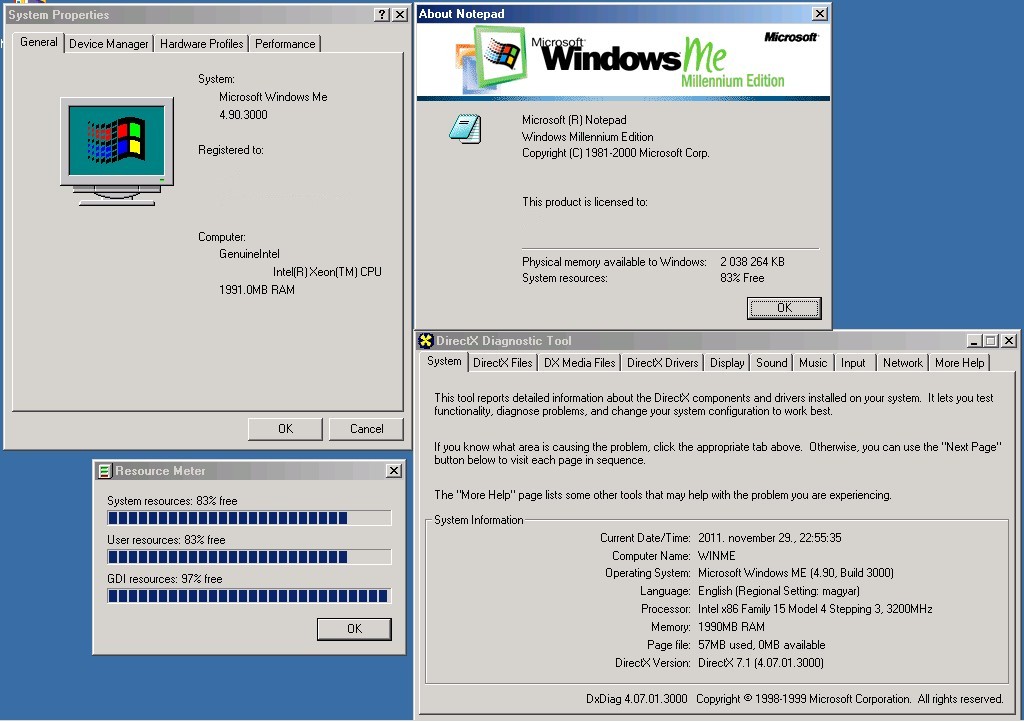
If you ever wondered how much memory is the maximum that the older Windows 9x/ME line of Windows systems supports actually, take a look at this picture:


Yes, the answer is almost 2 GB RAM!
And it's perfectly stable like this, I've run memory tests.


I've read many posts on the internet, that they not recommend to use more than 1 GB of RAM for the Win9x/ME versions, because it causes many problems, and even Windows won't start in some cases.


So I've fired up VMware (version 7.1.5 in this case) and begin testing on the freshly installed Windows ME English version (without any updates).
I've not noticed any problems with 1 GB of RAM, but if I increased RAM to 2 GB on the virtual machine, it wouldn't boot up.
Either locked with VMM bluescreen or powered off the virtual machine :)


That was because there is a bug with Win9x/ME's memory manager, and the file cache.
Every time Windows starts, it checks how much memory is in the computer, and adjusts the file cache to some percent of it. That works fine with memory up to 512 MB.
Just with this much memory, the VMM driver can't handle it and just freeze the system completely (it was designed to work with maximum 2 GB memory). With memory just below 2 GB, the system can start, but then the other bug comes with VCache (the file cache) which eats up all memory available from Windows, then not enough memory to load itself.


So we have to fix 2 problems at the same time, to get a boot with memory over 1,99 GB.
First of all, tell Windows that don't use more memory than 1992 MB.
That is done in the system.ini file (C:\Windows\system.ini) with this option, add this line under the [386Enh] section:


MaxPhysPage=7C6FF


It's in HEX format, and I've used an online DEC-to-HEX converter to get this value (however it must always end with FF, because if not, Windows may give funny values to the RAM limit, once I managed to boot with 6 MB RAM - it took a while and the network driver failed too :)).
[Please note that maybe Windows will only boot with even less RAM defined here, every system is different. If it won't work at first, try to use less value, by calculating a different HEX value]


Then, to make the VCache to work correctly, use these settings, also in the file system.ini, at the [VCache] section:


MinFileCache=5120
MaxFileCache=524288

This will limit the memory to use for the file cache to a maximum of 512 MB, and minimum value of 5 MB.
You can use any value you like, just make sure to stay below about 1700-1800 MB, as Windows still needs memory to load.
Also, I've read that with certain system configurations, with a big AGP aperture size, even less cache size is required to get a boot.
So be careful about giving it too big value.
I think 5 MB for starting size is good, it won't use memory when it's not needed. And 512 MB maximum is more than enough for anything you would ever use on such a Windows version :)
Maybe 128 MB is also enough.

Remember, both options are needed, or otherwise it won't boot. Believe me I tried many times.

In case you use wrong values and Windows doesn't boot, don't panic, just use a Win98 boot floppy or a WinPE/Linux live boot CD which can access the C: drive of Windows, and just modify the system.ini file from there, to give lesser values.
Or just take out the extra memory from the computer to have less than 2 GB, and modify after Windows boots up.
On a virtual machine this is much more easy, just mount the virtual hard drive as writable, and modify system.ini from the host system.

Here is this section of my customized system.ini file for reference:

[386Enh]
;Limit RAM to 1.99 GB: MaxPhysPage=7C6FF
MaxPhysPage=7C6FF

[VCache]
;Minimum 5MB file cache
MinFileCache=5120
;Maximum 512MB file cache
MaxFileCache=524288


Have fun and enjoy! :)

More info can be found here, what Microsoft says about the problem:
http://support.microsoft.com/kb/253912

Also, good to read this board for more info:
http://www.msfn.org/board/topic/109574-help-i-need-to-get-2gb-installed-ram-working-in-win98se/


Now you may ask, why would anybody want to use the old Windows 9x/ME system nowadays, and do this crazy thing to feed it with more than 2 GB memory.
The answer is just, because I can, then why not?
Nowadays we have insane amount of memory in our computers, according to the time of these systems, then it's good to test out how they behave in such extreme circumstances.
And I like Windows ME, with a disabled System Restore [it's buggy, disable it!] it works like a charm (and much faster than Win98 with enough RAM).

Next time I will check how much memory can Windows 3.x handle :)


Tuesday, November 29, 2011

Windows 2000 Compatibility Tab

Have you ever wondered, if Windows 2000 also have a compatibility tab for executables, just like Windows XP/2003 (and all future versions) has?


The answer is that it has this handful feature, just it's hidden by default.
To enable it, you will need to have at least Service Pack 2 applied.
But, unfortunately it only has 3 compatibility modes to choose from:

  • Windows 95
  • Windows 98
  • Windows NT with SP5
    ...but it's still more than nothing.


To enable it, just follow the steps provided by Microsoft:

  1. Log on as Administrator.
  2. Click Start, and then click Run.
  3. In the Open box, type the following command, and then click OK, where %SystemRoot% is the drive and folder in which Windows is installed:
    regsvr32 %systemroot%\apppatch\slayerui.dll

No restart required. After the DLL file registered successfully, you can use it almost the same way as in Windows XP and later (right click on the file, select Compatibility tab, and select a compatibility layer).
The only difference is that it's only working with shortcuts!
Unfortunately you can't select compatibility mode for the EXE file directly, you have to make a shortcut of it first, then set the compatibility option on the shortcut.


Extra info: you can set compatibility option for system files as well :)
In Windows XP and upwards, they are protected and can't be set in compatibility mode, but in Windows 2000 this can be done, so be careful what file you select to run in compatibility layer!
(however, setting wrong compatibility option on a shortcut to a system file won't hurt anybody)


More info can be found here: http://support.microsoft.com/kb/279792

Tuesday, November 22, 2011

Windows Update tweaking

Windows Update tweaking


One of the most annoying features of Windows is: Windows Update


I will give tips on how to modify the registry, so this feature will be more under our control.
Be careful about modifying the registry, as it can make Windows unbootable!
However, modifiying only this part of the registry is not that harmful.


My personal settings under Windows 7 are:
1. Don't restart the computer automatically if a user is logged on
2. Set the reboot reminder option to show up again only after 2 hours, if we choose postpone


These settings should work on Windows XP as well as Windows Server versions.


Find this registry key (start regedit.exe):
HKEY_LOCAL_MACHINE\SOFTWARE\Policies\Microsoft\Windows\WindowsUpdate\AU


If this specific key is not exist, you can create it. Then make these new specific DWORD values:


NoAutoRebootWithLoggedOnUsers
-> with value 1, this will make Windows don't restart automatically if a user is logged on


RebootRelaunchTimeout
-> with decimal value of 120, this will set the reboot reminder option to show up again only after 2 hours, if we choose postpone


That's all, after system restart the new settings are applied.


If everything is done properly, it should look like this in Regedit:


For more information and other settings (like WSUS and scheduled updates), visit these sites:


http://www.windowsnetworking.com/articles_tutorials/Registry-Keys-Tweaking-Windows-Update-Part1.html
http://www.windowsnetworking.com/articles_tutorials/Registry-Keys-Tweaking-Windows-Update-Part2.html


Easier setup:
select and copy all of this text below (to begin the file with "Windows Registry Editor Version 5.00" line is important!) and paste it to Notepad. 
Save as Unicode format, for example name it WindowsUpdateSettings.reg then just double-click on it to import to the registry:


Windows Registry Editor Version 5.00


[HKEY_LOCAL_MACHINE\SOFTWARE\Policies\Microsoft\Windows\WindowsUpdate\AU]

;Don't restart automatically if a user is logged on
"NoAutoRebootWithLoggedOnUsers"=dword:00000001
;Set the reboot reminder option to show up again only after 2 hours, if we choose postpone
"RebootRelaunchTimeout"=dword:00000078
;If this set to 0, the reboot reminder window prompt won't appear
"RebootRelaunchTimeoutEnabled"=dword:00000001

Friday, November 11, 2011

Hello world!

Hello everyone, I'm starting my IT blog today.


I will publish mostly technical and IT stuff, with many good resources and ideas for IT professionals and also the average users.
Most publications will come from my personal experience.


Disclaimer:
All publications reflect my own experiences, and my own opinion.

The information contained in this website is for general information purposes only. The information is provided by me, and while I endeavour to keep the information up to date and correct, I make no representations or warranties of any kind, express or implied, about the completeness, accuracy, reliability, suitability or availability with respect to the blog or the information, products, services, or related graphics contained on the blog for any purpose. Any reliance you place on such information is therefore strictly at your own risk.
In no event will I be liable for any loss or damage including without limitation, indirect or consequential loss or damage, or any loss or damage whatsoever arising from loss of data or profits arising out of, or in connection with, the use of this blog.
Through this blog you are able to go through links to other websites which are not under my control. I have no control over the nature, content and availability of those sites. The inclusion of any links does not necessarily imply a recommendation or endorse the views expressed within them.
All trademarks and legal rights of the names used on the blog are all the properties of their respective owners, I'm not holding any rights of them.